
Beacon CLI
Run the Beacon in the background on any machine
One command in the terminal turns a Raspberry Pi, a home server, or an old laptop into an always-on Teneo Beacon. No desktop app, no screen, no attention needed.
curl -sSL https://github.com/TeneoProtocolAI/teneo-beacon-cli/releases/latest/download/install.sh | bashThis command downloads and runs an installer. Check it yourself first: view the releases and the install script on GitHub.
View the source on GitHub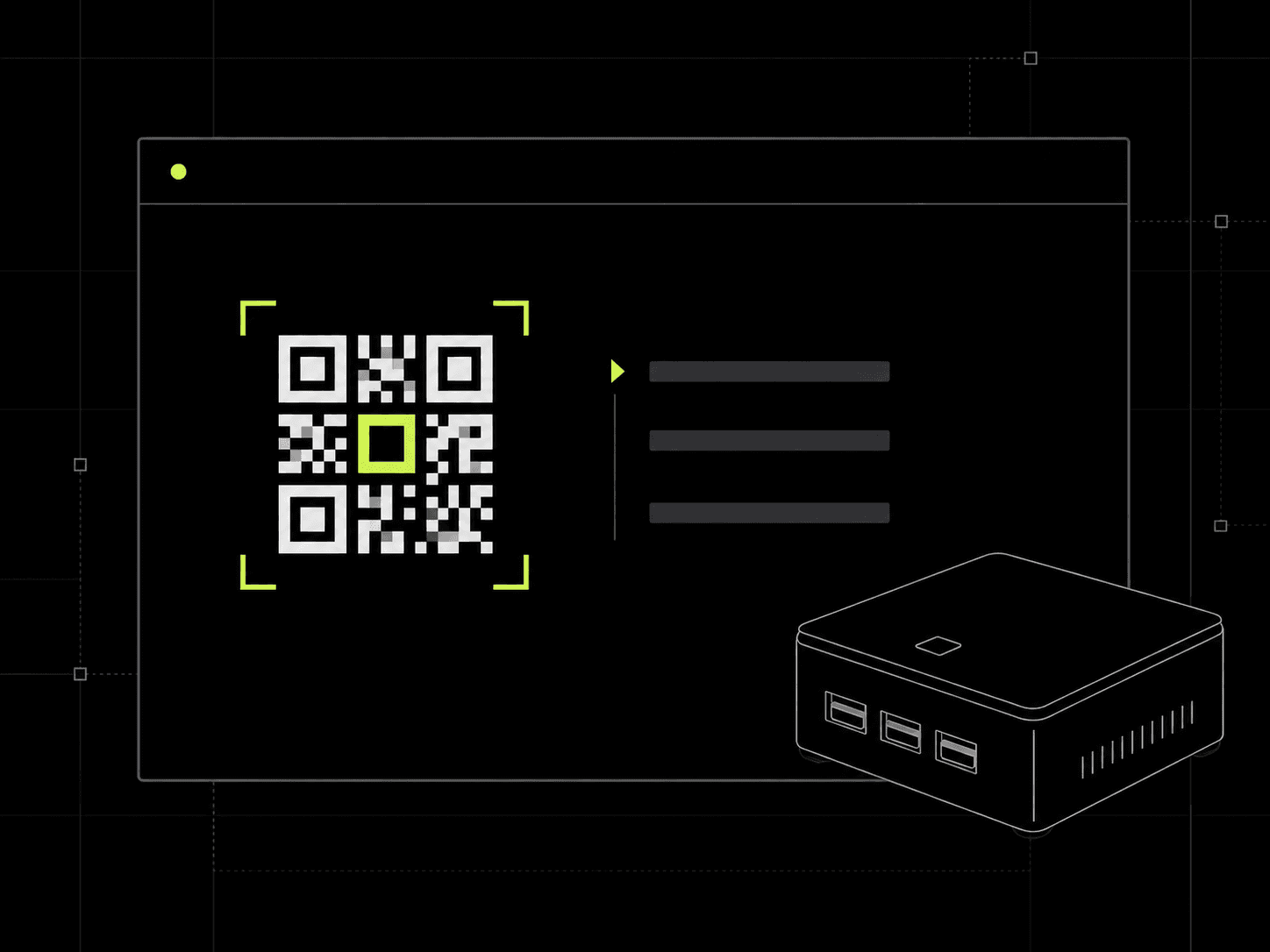
teneo-beacon, scan the QR code, then confirm in the Hub.Three Steps
Install. Pair. Make it permanent.
Install
Run the command above in a terminal. The installer detects your architecture and puts the teneo-beacon binary in place.
Pair
Run teneo-beacon. A QR code appears in the terminal. Scan it with your phone while logged in at the Hub, and confirm. The device registers itself and starts earning.
Make it permanent
Press q to leave the dashboard, then run sudo teneo-beacon --install-service. The Beacon now starts on every boot and reconnects after any outage.
Check it from anywhere
Once paired, the machine appears under Fleet in the Beacon mobile app and in the Expedition Hub, with its live status. You never need to be at the terminal to know it is online.
Where It Runs
If it boots, it probably works.
| Device | Supported |
|---|---|
| Raspberry Pi 3B+, 4, 5, Zero 2 W | Yes |
| Raspberry Pi 2 and 3 | Yes, the installer detects the architecture |
| Any x86_64 Linux: home server, NAS, old laptop | Yes |
| macOS, Apple Silicon and Intel | Yes, the service install needs no sudo |
| Windows | Yes, through WSL2 |
Before You Add a Second Device
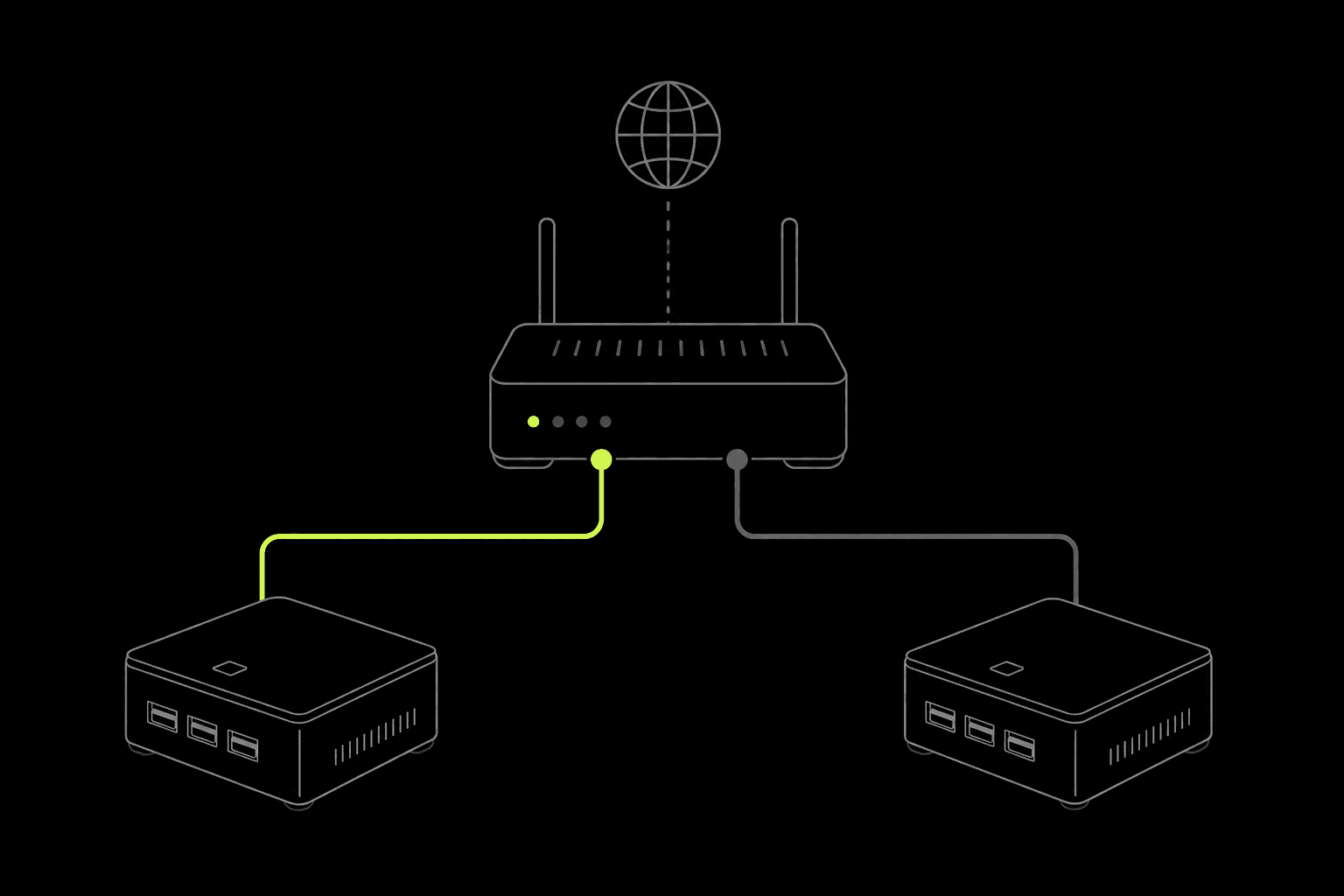
One Beacon earns per internet connection
Earning is tied to your connection, not your device count. Adding a second Beacon to the same home network does not double anything.
What the CLI changes is which machine holds that slot. A Raspberry Pi running around the clock on a few watts is a better home for it than a laptop you need to keep open.
Servers and VPS
Running on a server
Machines in datacenters earn on a dedicated tier: Beacon fragments at a flat 50% rate, with no points and no referral bonuses. Fragments still count toward your boosts, seasons, and draws.
Selected popular hosting providers are enabled and the list grows over time. We do not publish it. Install and run, and the Beacon detects the tier automatically. If your provider is not enabled yet, the Beacon will tell you.
VPNs never earn, on any tier. A home connection remains the best place to run a Beacon.
FAQ
Quick answers
How do I update?
Re-run the install command at the top of this page. It replaces the binary with the latest release. If the Beacon runs as a service, restart it afterwards with sudo systemctl restart teneo-beacon.
How do I check it is running?
Open the Beacon mobile app or the Expedition Hub and look under Fleet. Every paired device is listed there with its live status, so you can check from anywhere without touching the machine. On the machine itself, run teneo-beacon to open the live dashboard. If it runs as a service on Linux, journalctl -u teneo-beacon -f shows the live logs, and on macOS the log lives at ~/Library/Logs/teneo-beacon.log.
It is asking me to pair again after weeks of running. Is it broken?
No. The pairing between the device and your account can expire. Run teneo-beacon, scan the new QR code while logged in at the Hub, and confirm. Your account and rewards are untouched.
Does it work on Windows?
Yes, through WSL2. Install WSL2 first by running wsl --install in an admin PowerShell and rebooting, then open the Ubuntu terminal and run the same install command there.
How do I remove it?
Run sudo teneo-beacon --uninstall-service to stop and remove the service, then delete the binary and its data: sudo rm /usr/local/bin/teneo-beacon and rm -rf ~/.teneo-beacon.